GlobalProtect VPN: Installation MacOS
Installing GlobalProtect VPN Client on Mac
1. Go to the Downloads folder and double click on GlobalProtect.pkg.
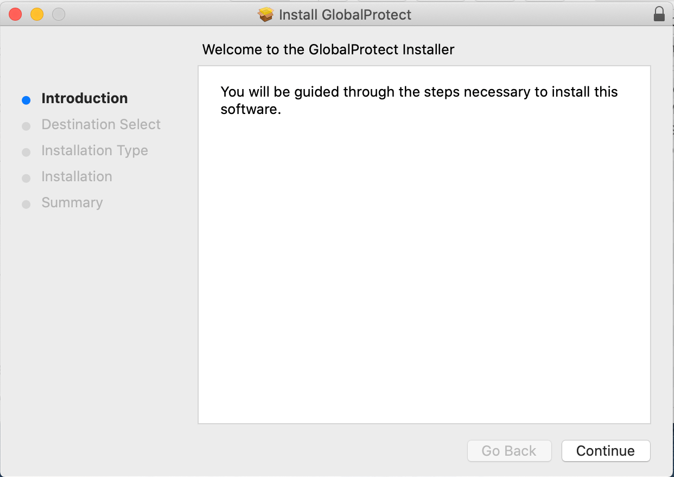
2. Click Continue on the Welcome screen:
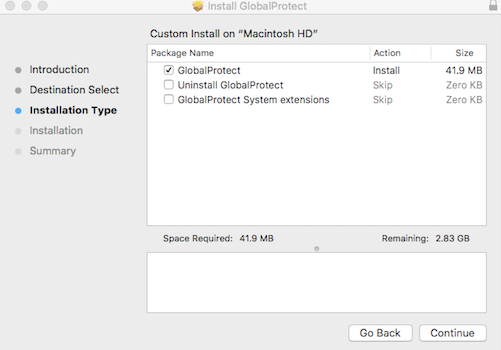
3. Click Continue for Installation type:
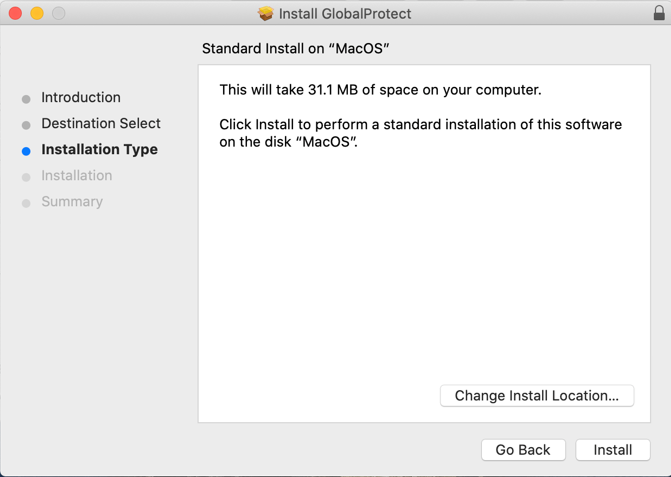
4. Click the Install button:
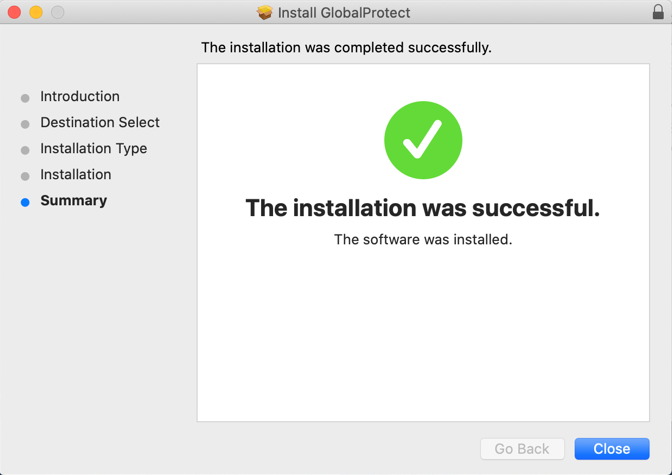
5. Click Close to exit the installer (but you’re not done yet. Continue to step 6):
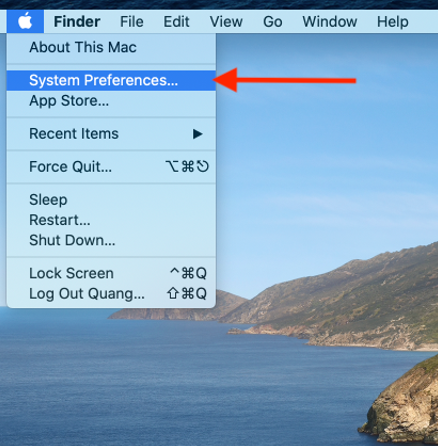
6. Go to System Preferences:
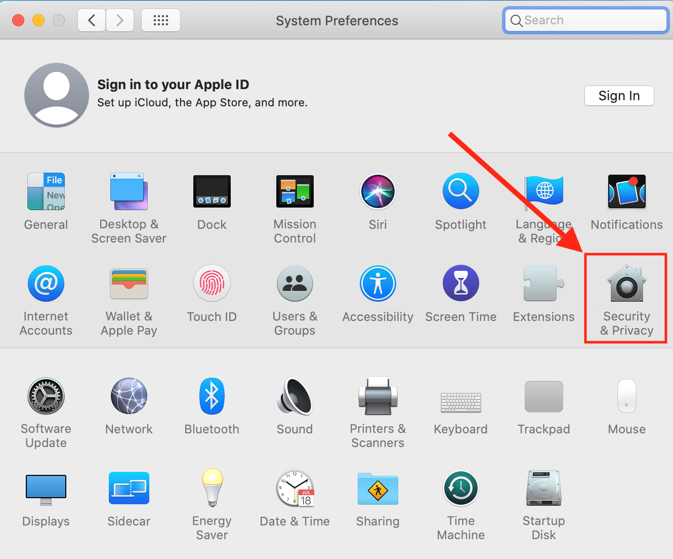
7. In System Preferences, click on Security & Privacy:
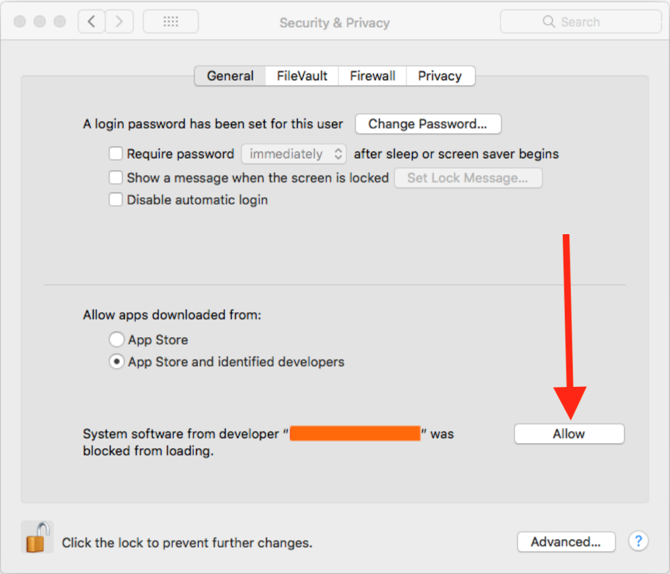
8. Click the Allow button where it says, “System software from developer “Palo Alto Networks” was blocked from loading.” You might have to click on the lock icon at the bottom left in order to click the Allow button:
6. To use GlobalProtect VPN on MacOS, see: Using GlobalProtect VPN Client for MacOS
For Windows directions on how to install GlobalProtect VPN, please refer to this GROK article: GlobalProtect VPN: Installation Windows
20404
9/28/2026 3:41:14 PM